
How do I export my selection to SFTP? #
You may need a selection file to send to an external partner that does not have a connecter to the Master Intelligence Platform. In that case, it is best to choose to export your file to SFTP.
Step 1: Start a New Action #
- Open MIP and navigate to the section where you can start a new action. This can be done either through the Engager or the Calendar.
- If necessary, refer to the "Setting Up a New Action" manual for detailed instructions on how to initiate an action.
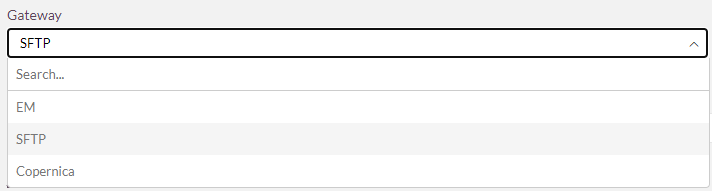
Step 3: Select the SFTP at Gateway #
- Go to Part 2 of the action design process.
- At the "Gateway" step, choose SFTP as the option.
Step 4: Synchronizing the selection #
- Perform the selection (Launch).
- While running the selection, the export is automatically synchronized to SFTP.
Note: #
- The name of the file on SFTP will be the same as the name of the action in MIP. Make sure the name of the action is clear and recognizable.
- Keep in mind that the selection and subsequent sync may take some time. Always schedule the start of execution (scheduling) a little earlier than the time you need the selection on SFTP.


