Skip to content
Linkedin Facebook Instagram Youtube
  • Login
    • myMIP
    • myDashboards
  • Login
    • myMIP
    • myDashboards
Book a demo
Contact
  • Home
  • Services
  • MIP Platform

    Features

    MIP Master Intelligence Platform
    Target Customer Engagement Module
    Socials Social Media Module
    Insights Intelligence, AI & dashboards
    Data Quality
    Customer Engagement

    What's new

    Latest Releases

    Sectors

    Retail, Ecomm
    Not for Profit, Fundraising, Charity
    Sports & Leisure
    B2B
    FMCG, Food, Hospitality

    Master INtelligence Platform

  • Inspiration
    • Blog
    • Events
  • Jobs
  • Support
    • myMIP
  • EN
    • NL
    • FR
  • EN
    • NL
    • FR

Contacts module

23
  • Contact
    • Giving company bankruptcy status
    • Create contact
    • Add or remove contact from test list
    • Contact search
    • GDPR | Histo of a contact lookup
    • GDPR | Looking up permissions and communications from/with a contact
    • Give individual status deceased
    • Add postretour manually
    • Giving relationship status 'Right To be Forgotten'
    • View survey results
    • Tabs contacts module not available
    • Set touchpoint to invalid
    • Add Touchpoint
    • Indicate preferred touchpoint
  • Permissions
    • Add Permission
    • Permissions overview
  • Attributes
    • Add attribute
    • Remove Attribute
  • Interactions
    • Add interaction
    • Interactions overview and details
    • View survey results
  • Notes
    • Add note
  • Unique ID
    • Consult/manage unique IDs.

Fundraising Module

1
  • Bank details
    • Add bank account number

Module Target

15
  • Engager Communication Channels
  • Target introduction
  • Audiences
    • Customize an audience
    • Creating a new audience
  • Engager
    • Setting up a new action
    • How do I sync my selection to an external tool?
    • Export selection to SFTP
    • Add test list to selection
    • Meta
      • Create lookalike Meta audience based on MIP export
    • Email
      • How do I synchronize my selection (audience) to Mailchimp?
  • Templates
    • Activation email domain & sender
  • Media Library
    • Adding files to the media library
    • Deleting files from the media library
  • Flow Automation
    • Stratics webforms introduction
  • Channels
    • Where can I find my Facebook Business Manager ID?

Socials module

2
  • Making socials connection
  • Socials introduction

Module Insights

3
  • Activate and consult myMIP dashboards
  • Segmentations | Customer Value
  • Segmentations | RFM

Data Quality module

4
  • Data quality | Offering services
  • De-duplication | Offering services
  • De-duplication | Merge contacts manually
  • De-duplication | Overview of activated services

Module Loads

6
  • 1. Introduction
  • 2. Overview
  • 3. ERROR - Global
  • 4. ERROR - RECORD
  • 5. Import Contacts
  • SFTP
    • SFTP – filezilla activeren

Module Settings

7
  • User | Customize MyMip language
  • User | Activate two-factor authentication MyMip
  • User | Logout
  • User Management
  • Meta | Activate connection
  • Meta | Deactivate connection
  • Managing test lists
View categories
  • Home
  • Support
  • myMIP
  • Module Target
  • Engager
  • Setting up a new action

Setting up a new action

Kris Vranken
Updated 31/07/2024

1 min reading time

Advance in Order: #

  • Target Group (Audience): Make sure the audience you want to reach is created.

  • Test Group: Make sure a test group is available for the action.
    Manage test lists
    Add or remove contact from test list
  • Content: Prepare content for the action (e.g., SMS, WhatsApp, email).

Method: #

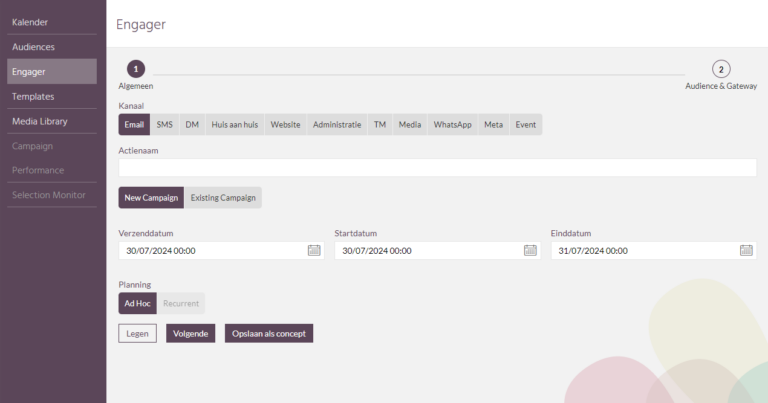
Use the Target module and select the Engager tab. An empty template for initiating an action is ready.

1. General #

Communication Channel

Choose the channel on which the action will be performed (e.g., SMS, WhatsApp, email).

Action Name 

Name the action.

Guideline for naming actions

  • YYYYMM(DD)
  • channel
  • name of action
Example: "20250913 SMS promotion back to school"

Action dates

  • Send Date: Date the action (or file sync) is sent.
  • Start date: Date from when analyses begin.
  • End date: Date to when analyses take place.

Planning:

  • Ad hoc: Action is performed once.
  • Recurrent: Action is performed frequently.

Save information

For channels such as House to House, Website, Administration, Media and Event, no audience selection is required and you can save the action. For other channels, click "Next."

2. Audience & Gateway #

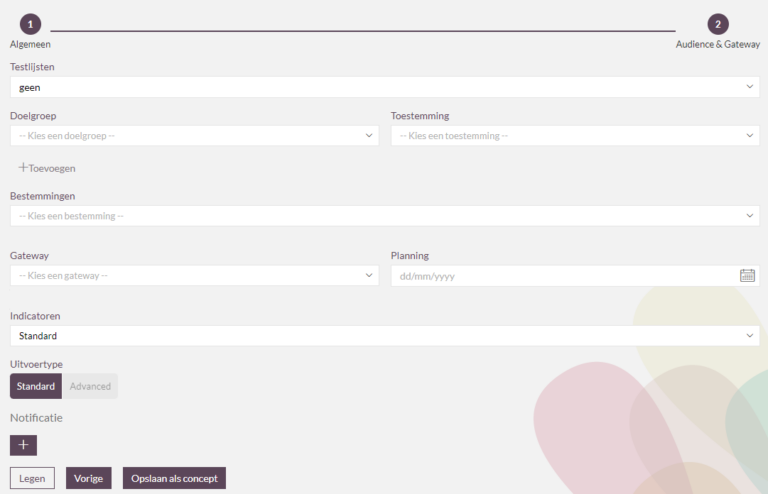
Test List 

Choose from the pick list whomever you wish to send the action to. All contacts from a test list are added to the action regardless of the selection filters used.

Add or remove contact from test list

Target group (audience)

Choose the appropriate target audience from the pick list to whom you wish to send the promotion.

creating target groups

Permission. 

Choose the appropriate permission (consent) for this action.
This is a legally required field!

Destination. 

Choose the appropriate Destination for this action.
What is a Destination: [See link]

Gateway:possible options are:

  • sftp (always possible): Data is placed on sftp.
  • Connected tool (e.g., Mailchimp): Selection is synchronized to the external tool.
  • Mip Email: MAT from Stratics.
  • Mip SMS: SMS from Stratics.
  • Mip WhatsApp: WhatsApp tool from Stratics.
If multiple gateway options are required, please contact support.

Planning:

  • Choose the date when the selection may be performed. Keep in mind that after the selection the sync must also be made if an external tool is chosen.
  • If you wish to perform the action immediately, choose date and time.

Template:

Only in case of choice of Mip Email, SMS or WhatsApp

  • Choose the template you wish to use for this action

Indicators:

Default is default.
If you require additional indicators, this can be discussed with support.

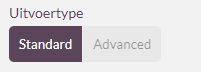
Output Type:

Default: Default record layout.
Check the default reclay for various channels here: [See link]

Notification:

Click "+" and add email addresses.
These will receive a notification when the sync or actions were performed.

Save information

  • Empty: Form reset and empty.
  • Previous: Return to previous page of Engager.
  • Save as draft: Save the action as a draft, the action will not be executed.
  • Save and launch: The action is ready to execute on date "Schedule."
campaign management
Add test list to selectionHow do I sync my selection to an external tool?

Made possible by BetterDocs

Contents
  • Advance in Order:
  • Methods:
  • 1. General
  • 2. Audience & Gateway

Was this helpful?

  • Happy
  • Normal
  • Sad
let's talk

Your inspiring data & AI journey starts now!

Schedule a call today and find out how Stratics can enhance your marketing.

Schedule a discovery call
Schedule a MIP Demo

Stratics

We are a Belgian company and offer advanced marketing , data and AI solutions.

The Master Intelligence Platform (MIP) combines CRM, CDP, marketing automation, AI and social media.

With expertise in growth hacking, performance marketing and AI, we drive your growth.

Contact Info

Kontichsesteenweg 38A
2630 Aartselaar
Belgium
info@stratics.be

© 2026 Stratics. All Rights Reserved.
Facebook f X-twitter Linkedin-in Instagram Youtube